


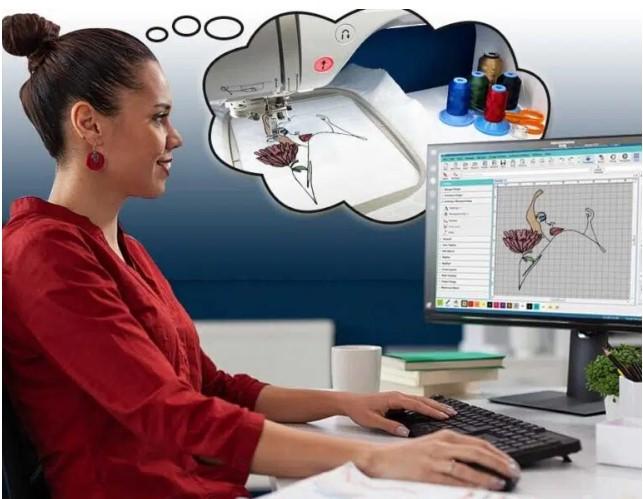
If you’re just starting out in machine embroidery, learning how to use a PES File Converter can feel confusing at first but don’t worry, you’re not alone. Whether you’re turning a logo into stitches or converting artwork into an embroidery-ready design, understanding the conversion process is the key to clean, professional results. Many beginners struggle with file formats, software choices, and stitch settings, but once you understand the basics, everything becomes much easier.
This beginner-friendly guide will walk you through everything you need to know about PES files, why they matter, how conversion works, and a simple step-by-step process you can follow with confidence.
What Is a PES File in Embroidery?
A PES file is a machine embroidery format mainly used by Brother and Babylock embroidery machines. This file tells your machine:
- Where to place each stitch
- Which thread colors to use
- When to trim and stop
- How the design should be layered
Unlike image files like JPG or PNG, a PES file doesn’t just show an image it contains actual stitching instructions your embroidery machine can read.
What Does a PES File Converter Do?
A PES File Converter turns regular image files or other embroidery formats into PES files that your Brother or Babylock machine can stitch. It converts designs such as:
- Logos
- Text
- Artwork
- Patterns
into machine-readable embroidery data. Without proper conversion, your embroidery machine simply won’t recognize your design.
Why Beginners Need a PES File Converter
If you’re new to embroidery, you’ll quickly realize that most designs online don’t come in PES format. You might receive:
- JPG
- PNG
- SVG
- DST
- EXP
- JEF
To stitch these on your Brother or Babylock machine, you must convert them into PES and that’s where a converter becomes essential.
Image Files vs. Embroidery Files: What’s the Difference?
This is one of the most common beginner mistakes: assuming image files can stitch directly.
Image Files (JPG, PNG, SVG)
- Just visual
- No stitch data
- Cannot run on embroidery machines
Embroidery Files (PES, DST, JEF)
- Contain stitch-by-stitch instructions
- Machine-readable
- Control thread, speed, and direction
A PES File Converter bridges the gap between artwork and actual embroidery.
Types of PES File Converters
There are three main types of converters beginners usually encounter:
1. Auto Conversion Software
These tools use automation to convert images into embroidery stitches quickly. They’re fast but often lack precision.
2. Professional Digitizing Services
Human digitizers manually create stitch files for better control, quality, and durability.
3. Design Software with Export Options
Programs like PE-Design or Wilcom allow advanced editing and exporting into PES.
For beginners, auto converters are tempting but professional digitizing always delivers better results for logos and detailed designs.
Step-by-Step PES File Conversion Process
Let’s break the conversion process into simple, beginner-friendly steps.
Step 1: Choose the Right Image
Start with a high-quality image. The better your image, the better your final embroidery.
Best practices:
- Use high-resolution artwork
- Avoid blurry or pixelated images
- Simple designs work best for beginners
- Use solid colors instead of gradients
Logos, text, and line art are perfect for first-time conversions.
Step 2: Clean Up the Artwork
Before converting, your design may need basic cleanup:
- Remove backgrounds
- Close open shapes
- Fix uneven lines
- Simplify excessive details
This helps your PES File Converter produce cleaner stitches with fewer errors.
Step 3: Upload the File to Your Converter
Once your image is ready, upload it into your chosen conversion tool or software. Most converters support formats like:
- JPG
- PNG
- BMP
- SVG
- AI
At this stage, you’ll see a preview of your design before stitches are applied.
Step 4: Select Stitch Types
This is where embroidery magic happens. You’ll choose stitch styles for different parts of the design:
- Satin Stitches – for borders and lettering
- Fill Stitches – for large areas
- Running Stitches – for fine details
Beginners should stick with simple stitch types to avoid thread breaks and puckering.
Step 5: Adjust Stitch Density
Stitch density controls how tight the stitches are. Too dense and your fabric puckers. Too light and the design looks empty.
Good beginner tip:
Start with medium density and run a test stitch on scrap fabric.
Step 6: Assign Thread Colors
Match your digital thread colors as closely as possible to your physical thread. Even small color changes can drastically affect the final appearance.
Step 7: Set Design Size
Always size your design before exporting. Resizing after conversion can distort stitch spacing. Set your final embroidery dimensions now.
Step 8: Export as PES File
Once everything looks right, export the file in PES format. Your design is now machine-ready.
Step 9: Transfer to Your Embroidery Machine
Move your PES file to your embroidery machine using:
- USB flash drive
- Direct computer connection
- Wi-Fi (on supported machines)
Load it into your machine, hoop your fabric, and you’re ready to stitch.
Step 10: Test Stitch Before Final Production
Never skip this step. Always test your design on scrap fabric to check:
- Stitch alignment
- Thread tension
- Color sequencing
- Fabric stability
Make adjustments if needed before working on your real project.
Common Mistakes Beginners Make During PES Conversion
Let’s save you some frustration by pointing out the most common beginner mistakes:
- Using low-resolution images
- Skipping underlay stitches
- Making designs too small
- Ignoring fabric type
- Overloading designs with tiny details
- Not running test stitches
Avoiding these mistakes will greatly improve your embroidery results.
What Can You Convert into PES Files?
You can use a PES File Converter to create embroidery-ready designs from:
- Business logos
- Monograms
- Line drawings
- Clipart
- Team logos
- Lettering designs
- Custom artwork
As long as the image is clear and well-defined, it can be converted.
Why Auto PES Conversion Is Not Always Enough
Automatic converters are quick but they don’t understand:
- Fabric behavior
- Push-pull compensation
- Stitch direction balance
- Thread tension issues
That’s why many beginners struggle with broken threads, puckering, and misaligned stitches after using free auto tools.
When Should Beginners Choose Professional Digitizing Instead?
You should consider professional digitizing when:
- Your logo contains fine details
- You’re running a small embroidery business
- The design is for client orders
- You need consistent quality
- You want durable stitches
Manual digitizing produces cleaner edges, smoother curves, and longer-lasting embroidery.
PES File Converter vs. DST Converter: What’s the Difference?
PES files are primarily for Brother and Babylock machines, while DST files are used by many commercial embroidery machines. The core difference is machine compatibility not design quality.
If you use a Brother machine, PES is your go-to format.
How PES Conversion Impacts Stitch Quality
A well-converted PES file affects:
- Stitch sharpness
- Fabric stability
- Thread longevity
- Wash durability
- Overall visual appeal
Bad conversion leads to wasted garments and disappointed customers.
Tips to Get the Best PES Conversion Results
Here are some quick beginner-friendly tips:
- Always use clean vector artwork when possible
- Avoid shading and gradients
- Use bold lines
- Keep lettering above ¼ inch
- Test every new design
- Use stabilizers correctly
- Match your thread type with fabric
Free PES Converters vs. Paid Options
Free Converters
- Quick results
- Limited customization
- Often low-quality stitches
- Not ideal for business use
Paid Converters or Professional Services
- High stitch accuracy
- Fabric-based optimization
- Reliable commercial results
Free tools work for practice, but serious projects need better solutions.
How Beginners Can Practice PES File Conversion Safely
If you’re learning:
- Start with simple designs
- Use scrap fabric
- Experiment with different stitch types
- Take notes on what works
- Compare auto vs. manual digitizing
Practice builds confidence and better embroidery.
Is Learning PES Conversion Worth It in 2026 and Beyond?
Absolutely. With the rising demand for:
- Custom merch
- Small apparel brands
- Personalized gifts
- Workwear branding
Knowing how to convert designs into PES files gives you a valuable skill that stays in demand.
Final Thoughts
Learning how to use a PES File Converter is one of the most important skills for anyone stepping into the world of machine embroidery. From understanding file formats and stitch types to mastering density and testing your designs, each step plays a role in producing clean, professional embroidery. While auto converters may work for basic projects, higher-quality results often come from experienced digitizers who understand how fabric, thread, and stitch behavior truly work together. And when beginners are ready to move from practice mode to professional-level results, many trusted embroidery creators turn to Digitizing Buddy for reliable PES conversion and flawless stitching that truly stands out.

 English
 French
 Spanish
 Portuguese
 Deutsch
 Turkish
 Dutch
Dutch
 Italiano
 Russian
 Romaian
 Portuguese (Brazil)
 Tiếng Việt